How to import the school lunch menu from a PDF or a photo
Upload the monthly menu from your kitchen or caterer as a PDF or a photo and the platform fills in every day for you. Step by step, with pictures.
Every month the kitchen or catering company sends you the lunch menu, usually as a PDF. Until now it had to be copied into the platform day by day and, if you have several diets (standard, gluten-free, puréed…), once for each of them. With Import from PDF or photo you upload that same document, the platform reads the menu with artificial intelligence and fills in the whole month for you. All you do is check it and save it.
Here is how, step by step.
What you need
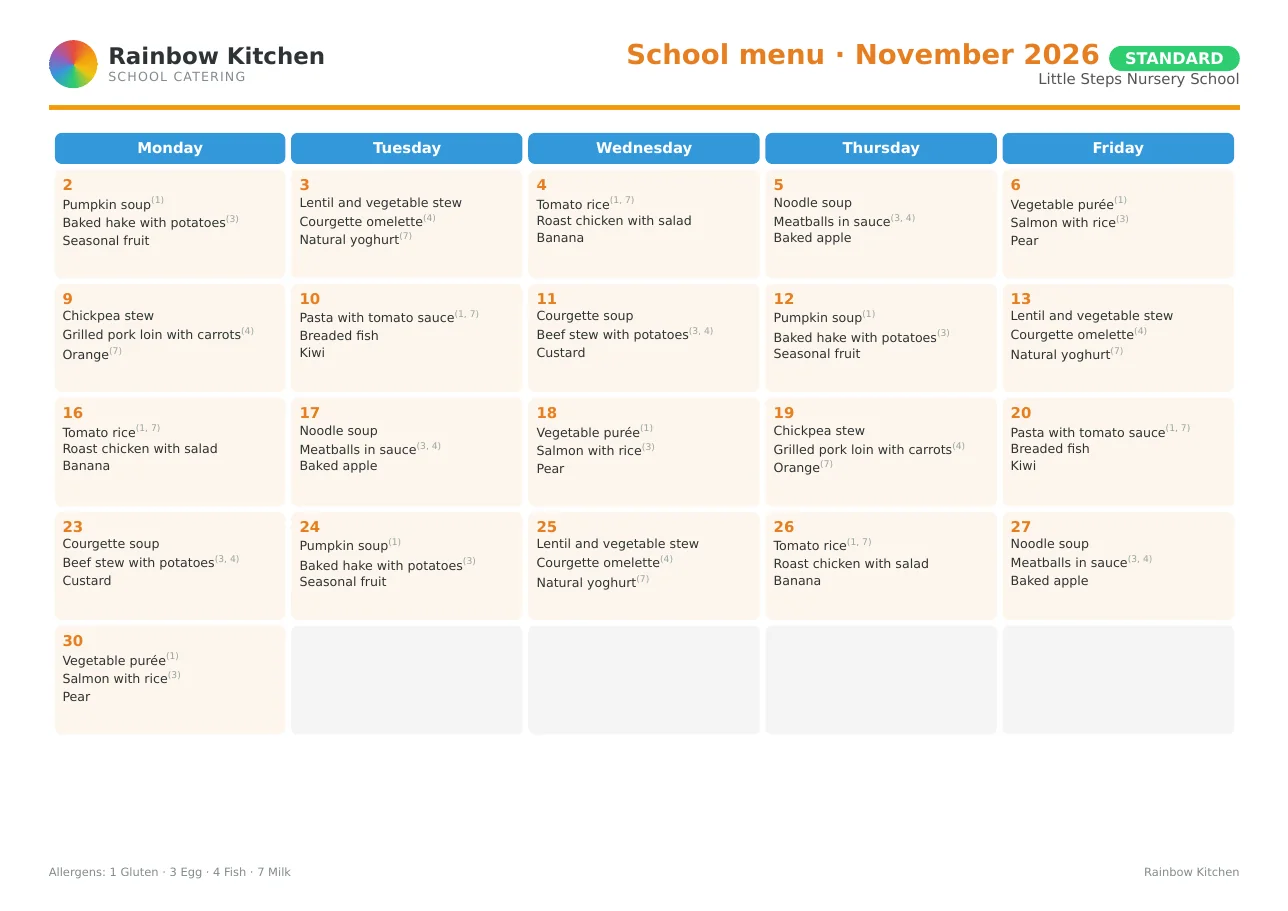
- The month's menu as a PDF or a photo (JPG, PNG…), up to 25 MB. It works just as the kitchen sends it: with colours, logos, allergen codes or several diets in the same file.
- Your school's menu categories (for example Standard or Gluten-free). If the document has a diet you don't have yet, you can create it during the import.
!A menu like the ones kitchens send: a PDF with one page per diet.
Step 1. Open the month you want to fill in
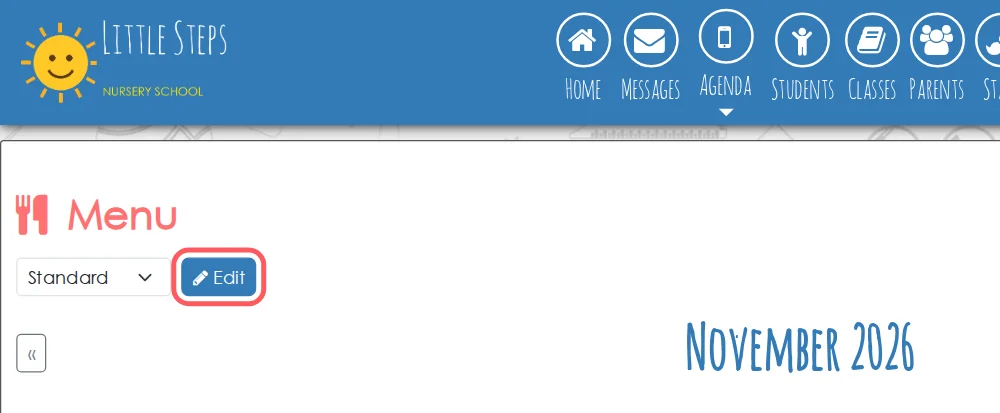
Go to Agenda → Menu, choose the menu category in the drop-down and click Edit.
!In Agenda → Menu, choose the category and click Edit.
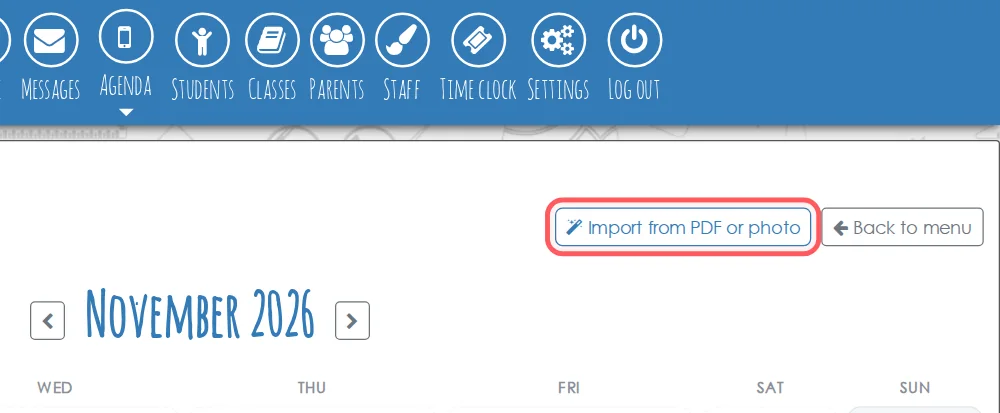
The month opens for editing. Check it is the right month (the arrows change it) and click Import from PDF or photo.
!The Import from PDF or photo button, top right.
Step 2. Upload the PDF or the photo
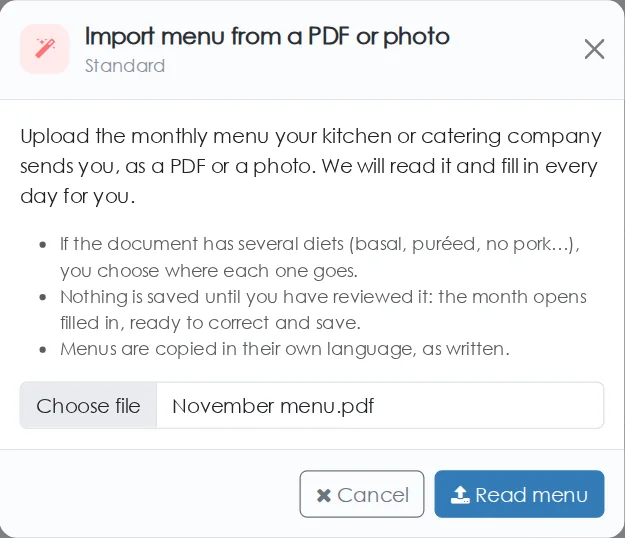
Choose the file and click Read menu. If you take a photo with your phone, make sure the whole page is in it, straight and well lit. If the photo comes out sideways, don't worry: the platform turns it the right way up.
!Choose the menu file and click Read menu.
Step 3. Wait while the menu is read
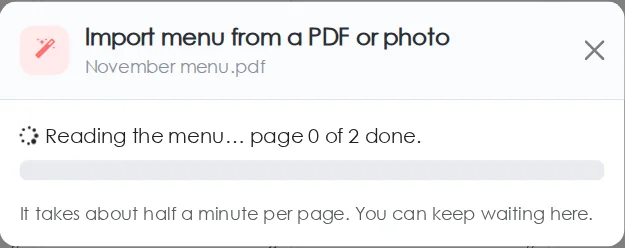
Reading takes about half a minute per page. You will see a progress bar and can wait in the same window.
!While it reads, the bar shows how many pages are done.
Step 4. Choose where each menu goes
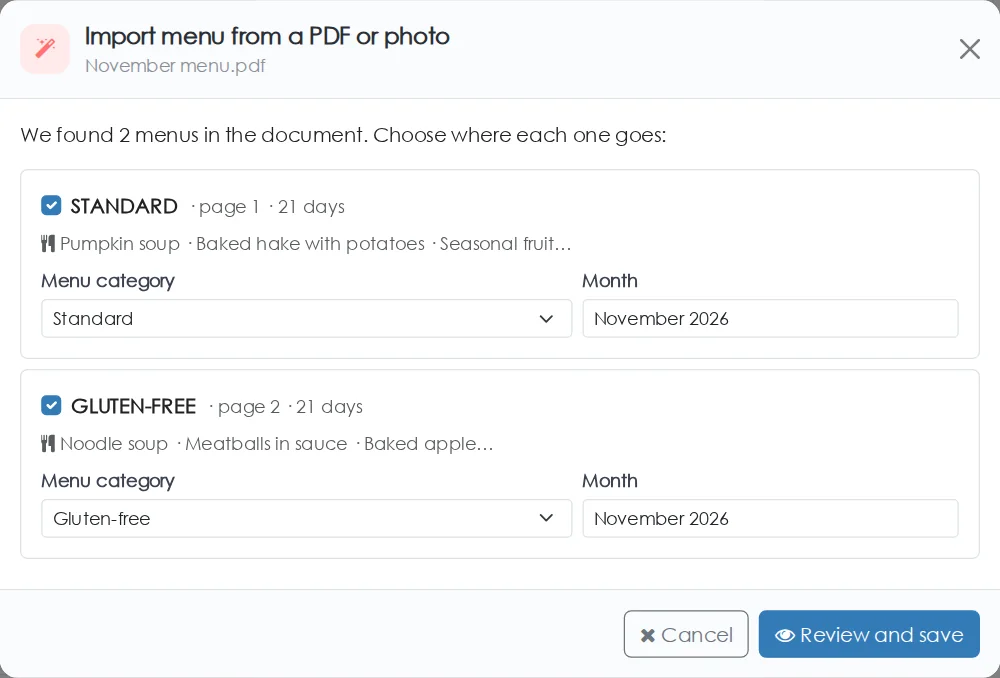
When it finishes, there is a box for each menu found in the document, with its name, the page it comes from and how many days it has. For each one:
- Menu category: the one named like the diet in the document is suggested (STANDARD → Standard). If you have none like it, New category with that name is suggested. You can change it.
- Month: the month printed on the document is suggested.
- If you don't want to import one of them, untick it. Pages of suggested dinners or snacks start unticked.
When everything looks right, click Review and save.
!One box per diet, with its category and month.
What if the menu goes by weeks, without dates?
Some kitchens send a rotation ("Week 1", "Week 2"…) that repeats. Then you will also see Week 1 starts on: choose the Monday it starts. The other weeks follow, and if the month is longer it starts again from week 1.
Step 5. Review and save
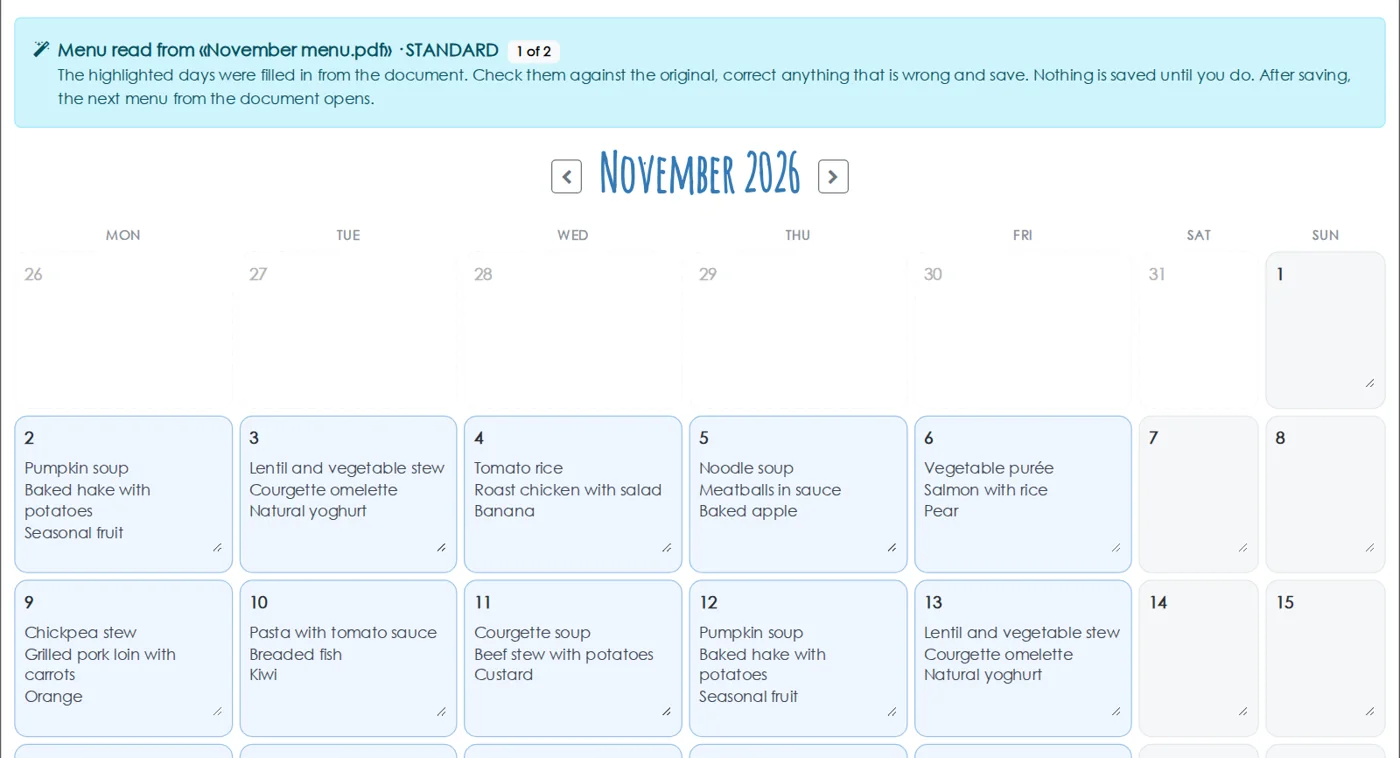
The month opens with the imported days highlighted in blue. Nothing has been saved yet. Compare it with the original document and correct anything you need by typing straight into each day.
!The highlighted days were filled in from the document.
A few details that help:
- If a day already had a different menu, you will see a small clock icon: hover over it to see the previous menu.
- Days that are not in the document stay as they were.
- If several dishes land on a weekend, a warning appears: the document is probably for a different month.
When it is right, save. If the document had several diets, the button says Save and review the next one and takes you to the next; on the last one it says Save month.
!Save and move on to the next diet.

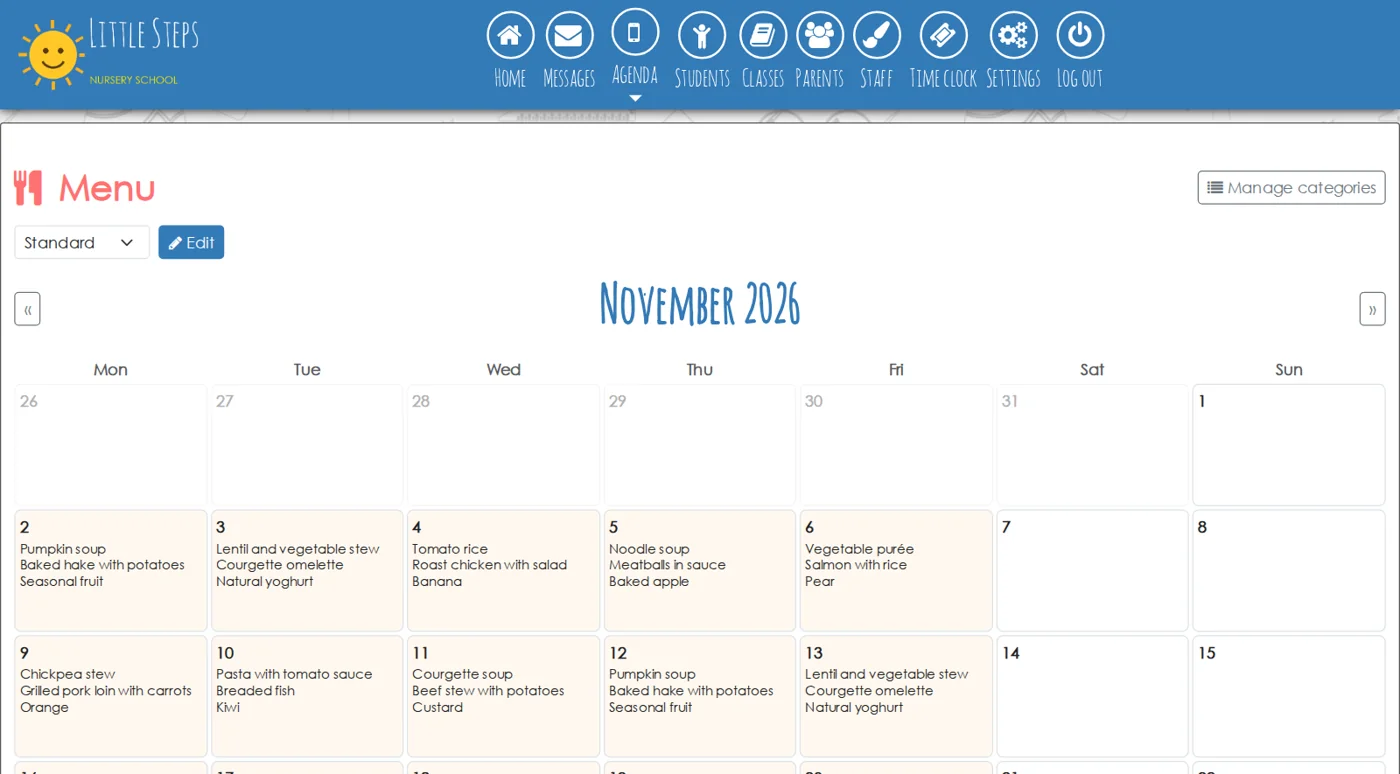
Done: the menu is published
Once saved, the month's menu appears in Agenda → Menu, and each family sees the one for the category assigned to their child's enrolment, in the Nursery Parents app and on the web.
Tips to get it right first time
- Use the original PDF whenever you can: it reads better than a photo.
- There is no need to split the diets: if they all come in one PDF, upload the whole file.
- Allergen codes, calories and the suggested dinner are removed automatically so the menu reads cleanly.
- Dishes are copied exactly as written, in their own language. They are not translated.
- Always check before saving: the reading is automatic and, especially with photos or very busy designs, it can make mistakes or miss a day.
Frequently asked questions
Is anything saved before I check it?
No. The menu that was read only fills in the editing screen. Nothing is saved, and families see nothing, until you click save.
What happens to days that already had a menu?
When you save, the days in the document are replaced by the imported menu (before that, the clock icon shows you the previous one). All other days stay the same.
Does it work with menus in other languages?
Yes. You can upload menus in Spanish, Catalan or any other language: they are copied exactly as written.
What if the document is not a menu or can't be read?
You will see a message explaining what happened and can try another file, for example a sharper photo or the original PDF.
Related guides
Try it free for 30 days
No card, no minimum term, and every feature included.